Display buying guide

How to choose a gaming monitor

Resolution, refresh rate and the PC must be chosen together so you do not pay for pixels or speed the build cannot deliver.

3 min read4 chaptersIllustrated
Gaming monitor with keyboard and headphones on a dark desk
The screen sets the workload for the whole PC, which is why it belongs in the build decision.
Short answer

Pick resolution from screen size and image quality preference, then choose a refresh rate close to the frame rates your games and PC can sustain. Competitive and cinematic games often need different priorities.

A monitor outlives most of the parts behind it, so it deserves real thought. It also defines the work your PC must do, because every additional pixel and every additional frame is load the graphics card has to produce.

The best display for you is the one your build can actually feed in the games you play, with panel behaviour that matches how you use it.

Resolution and size belong together

Resolution should be chosen with screen size and viewing distance in mind. On a compact screen at desk distance, a moderate resolution already looks sharp, while a large screen benefits from more pixels to avoid a soft image. Going up a resolution step always increases the graphics work, so it is a build decision as much as a display one.

Use the forecast on this site with your intended resolution before buying. If your target games land well below the frame rate you want, either raise the graphics budget or choose the lower resolution and enjoy a smoother result.

Refresh rate and what you will really reach

High refresh rates improve motion clarity, but only when frames are actually delivered. A very fast panel fed sixty frames looks like a sixty frame experience. In competitive titles at moderate settings, high frame rates are realistic. In heavy single player games at high settings, they often are not.

A good compromise is a panel whose refresh rate sits a little above what your build sustains in your main games, with variable refresh enabled so that the frame rate can move without tearing or stutter.
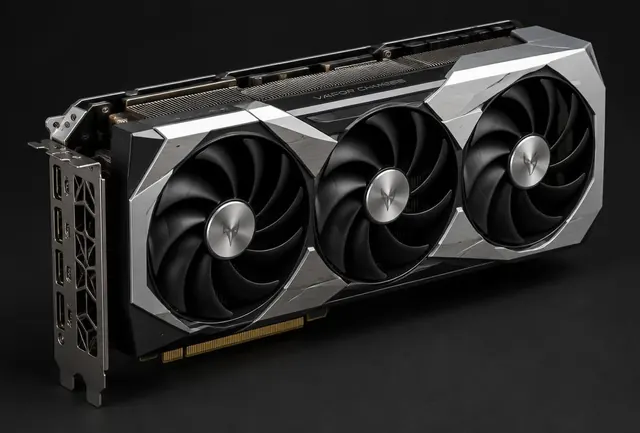
Graphics card that feeds a high refresh display
Refresh rate is only useful if the graphics card can supply the frames.

Panel type, colour and response

Panel technology changes the character of the image. OLED panels give very deep blacks, excellent contrast and very fast response, at a higher price. IPS panels offer good colour and viewing angles with solid all round performance. VA panels often provide strong contrast with generally slower transitions.

Read response and overshoot behaviour rather than a single advertised figure, and treat HDR claims carefully: real high dynamic range needs genuine brightness and local dimming, not just a label on the box.

Connections, sizing and desk reality

Check the cable and the port before you buy. Driving a high resolution at a high refresh rate needs both the right output on the graphics card and a cable rated for it, and the cable in the box is not always the one you need.

Size interacts with distance. A large screen close to your face forces eye movement across the panel, which is tiring in competitive play, while a smaller screen at the same distance keeps everything in view. Measure the depth of your desk before choosing a diagonal.

Stands and ergonomics are easy to overlook and hard to ignore afterwards. Height adjustment, tilt and a mount option are what make long sessions comfortable, and a monitor arm can rescue a shallow desk.
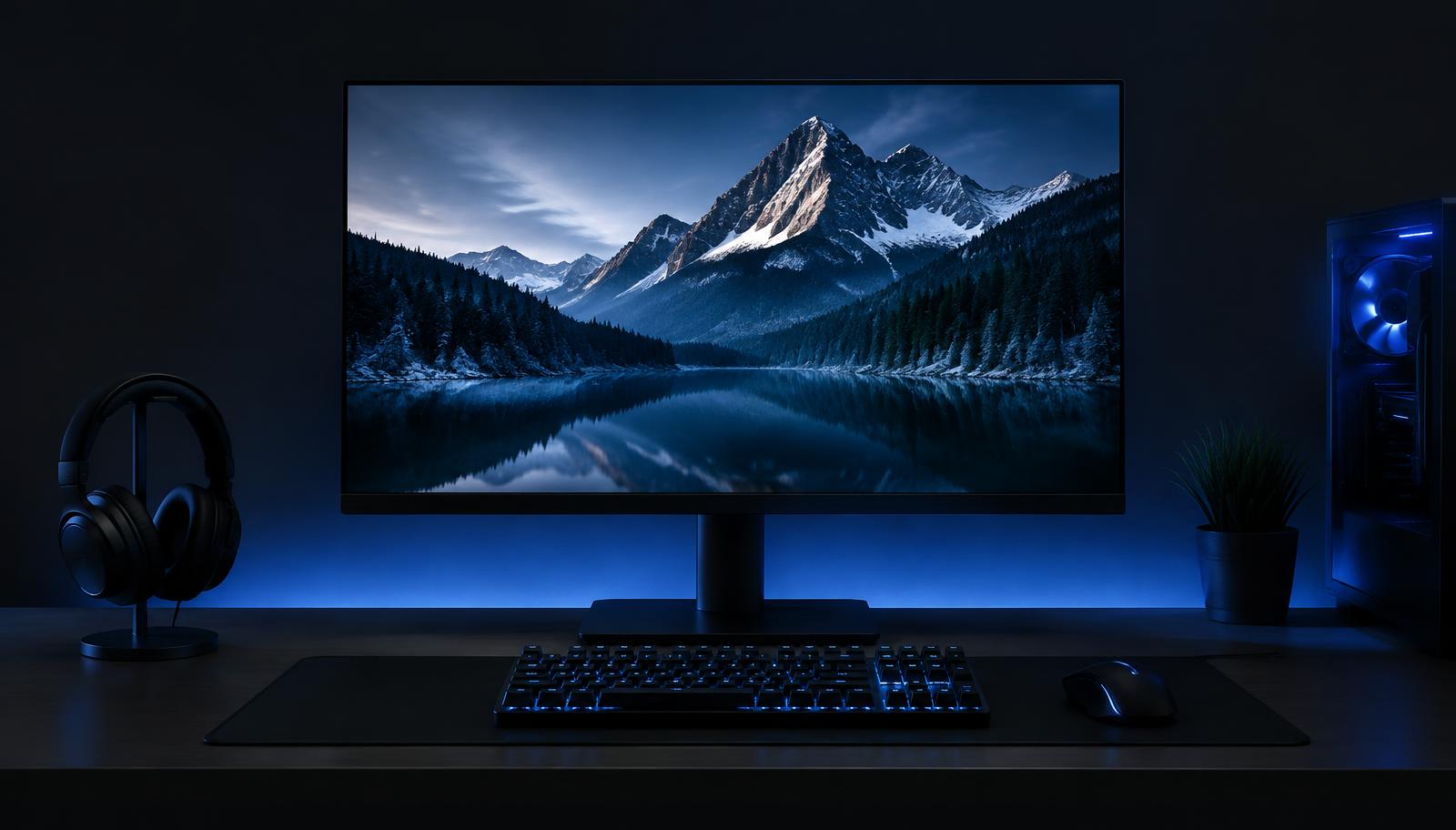
Monitor positioned on a desk at a comfortable distance
Ports, cables, viewing distance and stand adjustment all decide how the screen feels daily.

Choose by situation

Your situationPrioritizeWhy
Competitive playHigher refresh rate with a realistic FPS targetMotion clarity benefits from frequent frames.
Mixed gamingBalanced resolution and refreshIt avoids overspending on one dimension.
Cinematic or detailed gamesHigher resolution with moderate refreshImage detail may matter more than extreme FPS.

Common mistakes

  • !Buying a refresh rate the PC rarely reaches.
  • !Raising resolution without budgeting more GPU performance.
  • !Comparing only refresh rate and ignoring panel behavior and connections.

Before you buy

  1. 1Choose target games.
  2. 2Set resolution and target FPS together.
  3. 3Match display inputs to the GPU.
  4. 4Use the build forecast before buying.

Questions people ask

Is 4K worth it for gaming?

Only with a graphics budget that can feed it. Otherwise 1440p at a higher frame rate is usually the better experience.

Do I need variable refresh?

It helps in nearly every case, because frame rates vary. It smooths the presentation without a fixed cap.

Does the panel type matter more than refresh?

It depends on what you play. Competitive players favour speed, while cinematic players often prefer contrast and colour.

Use the guide with real parts

Keep reading